
Your numbers
Replace your primary number
Swap your primary number for a new one from the number's settings. The first replacement is free; later ones are a paid in-app purchase.
Before you start
- An active primary number (the one with the crown)
Steps
1Open the primary number's settings
On your Profile tap the number with the crown. Scroll to the bottom of Number Details.
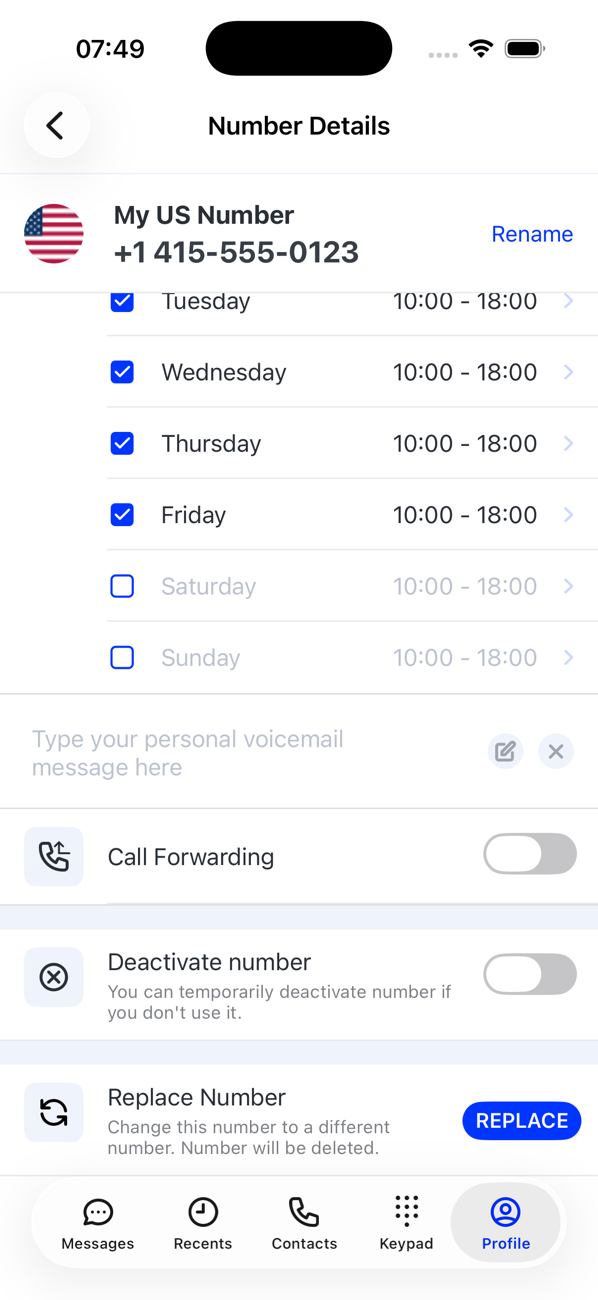
2Tap REPLACE
Next to Replace Number tap REPLACE. The app warns that the current number will be deleted; the first replacement is free, and it tells you when a replacement will be charged.
3Choose the new number
Pick a country, a region where there is one, and a number, as when you first got a number. Your subscription moves to the new number.
4Tell your contacts
The old number is released and cannot be recovered, so let anyone who still uses it know. Your conversations and call history belong to the number, so they are not carried over.

Good to know
- Extra numbers cannot be replaced; delete one and get another instead.
- Replacing a number is not the same as renewing an expired one, which keeps the number.