
Account and settings
Lock the app with a PIN or biometrics
Keep your numbers and messages private with a 4-digit PIN, Face ID, Touch ID or your phone's fingerprint or face unlock.
Before you start
- A Second Phone account
Steps
1Open Settings
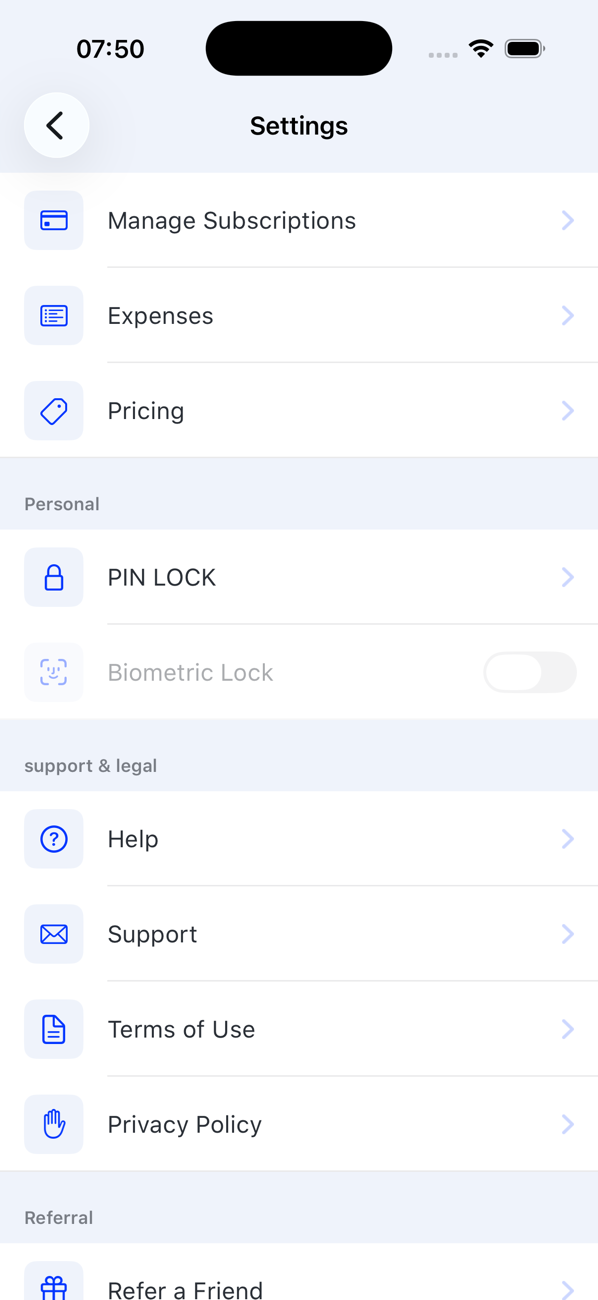
On your Profile tap the settings icon.
2Set a PIN
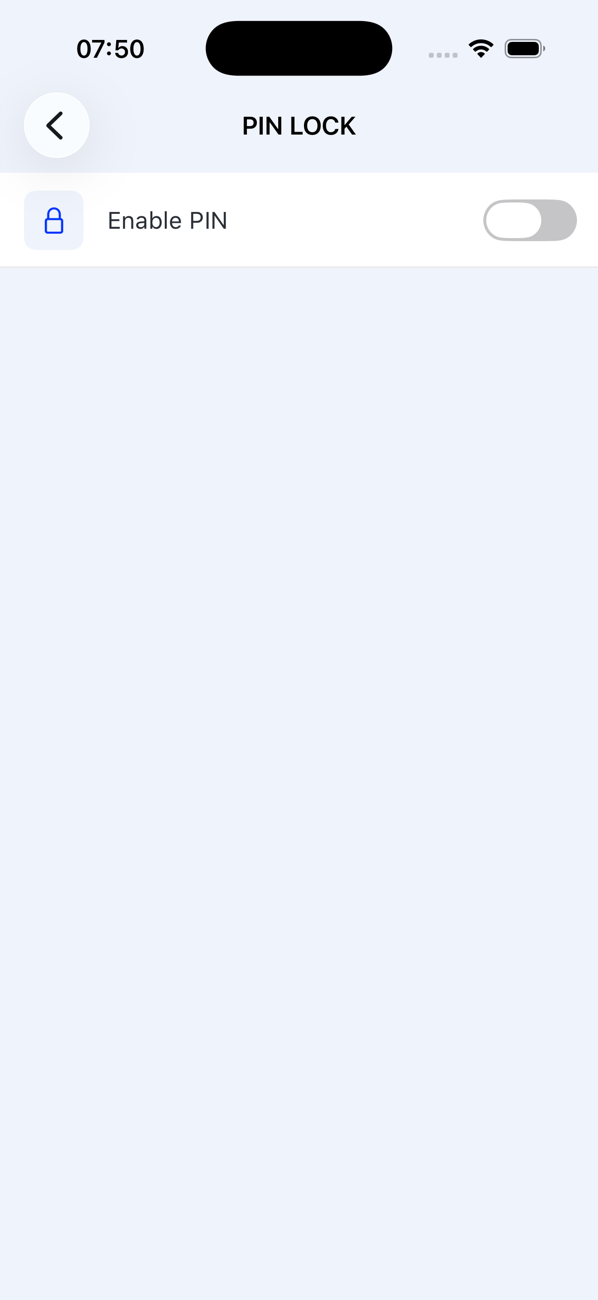
Tap PIN LOCK and enter a 4-digit PIN, then enter it again to confirm. From now on the app asks for it when it opens.
3Add biometrics
Switch on Biometric Lock. The app then unlocks with Face ID or Touch ID on iPhone, or fingerprint or face unlock on Android, using what you have already registered on the phone.
4Change or remove the PIN
Open PIN LOCK again, enter your current PIN, then choose a new one or turn the lock off.


Good to know
- The PIN is stored only as a hash; nobody, including us, can read it back.
- Forgotten your PIN? Contact us from the email address you sign in with.